How to Remove Music Player from Lock Screen in iOS 12
The following tips are the answers that can help you remove music player widget from your lock screen in iOS 12.
#1. Make Sure You Really Stopped Playing Music
Let’s try closing the app properly one more time. You may discover that you haven’t properly closed the music app.
Open the Music app on your iPhone.
Double click on the Home button (if you’re using iPhone 8 and earlier) or swipe up from the bottom (if you’re using iPhone X).
Swipe up the Music app to close it.
#2. Reboot Your iPhone
Rebooting your iPhone will help to refresh your iPhone, and this can take away the music player from your lock screen.
Hold the iPhone power button for a few seconds.
A power button will appear with the instruction “Slide to Power Off”. Slide it to switch off your iPhone.
When your iPhone is off, hold the power button until your iPhone lights up.

#3. Close All Open Apps
If the above two methods did not work, you can try closing all your iOS 12 apps.
Wake up your iPhone.
Double click on the Home button (if you’re using iPhone 8 and earlier) or swipe up from the bottom (if you’re using iPhone X).
Swipe up all the open apps to close them.

#4. Disable Notification for Music App
Disabling music notification can help to solve the issue you are facing.
Go to the Settings app and launch it.
Click “Notifications > Music > Allow Notifications.
Click the switch to turn it off.

#5. Remove Music from iPhone Widgets
Switching off Today View may be the solution to the issue you are facing.
Go to your iPhone Home screen.
Swipe right, scroll down to tap “Edit” and tap the red (-) button to remove Music app.

#6. It Could be a Bluetooth Issue
If your iPhone is paired with several devices that use Bluetooth, then that may be the reason why you’re encountering music player stuck on iPhone lock screen. You can disable the Bluetooth pairing of such devices to solve this issue.
Go to “Settings > Bluetooth. Click the “i” icon next to the device you want to remove.
Then remove the device from your iPhone by clicking “Forget This Device” and confirm.
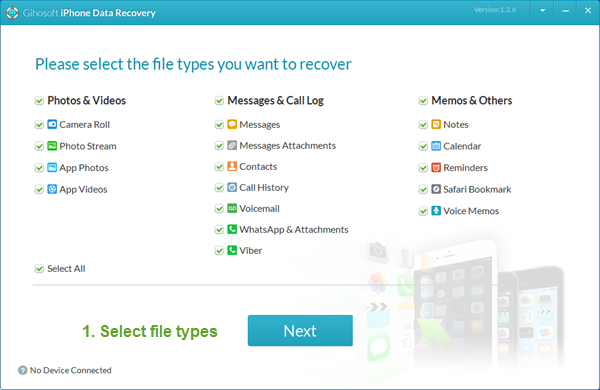
If you lost videos from iOS Camerall Roll which are nowhere to download again, you can use Gihosoft iPhone Data Recovery to get back deleted videos from iOS device including iPhone, iPad and iPod Touch.
You may also like:
How to transfer messages from iPhone to iPhone
Any app suggestions or topic recommendations are appreciated in the comments down below.


